


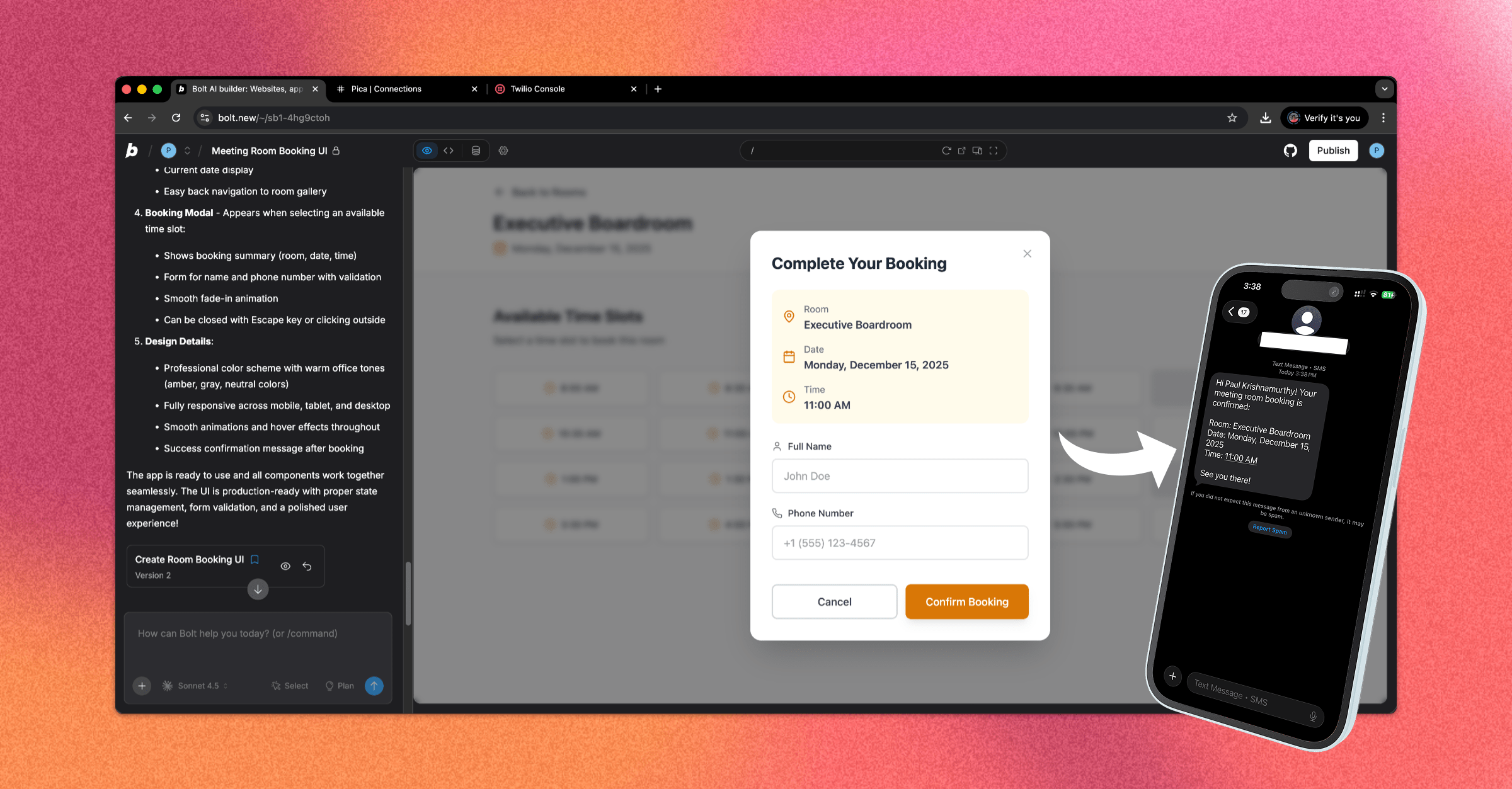
In this guide, we'll build a meeting room booking software that sends SMS confirmation texts via Twilio. With Bolt and Pica, you can create a production-ready booking system with SMS notifications in minutes.
What You'll Build
By the end of this tutorial, you'll have:
- A beautiful meeting room booking interface
- A calendar view showing available time slots
- A booking form collecting user name and phone number
- Automatic SMS confirmations sent via Twilio
Let's get started! 🚀
Step 1: Build the Meeting Room Booking UI
First, let's create the booking interface with Bolt.
Prompt Bolt:
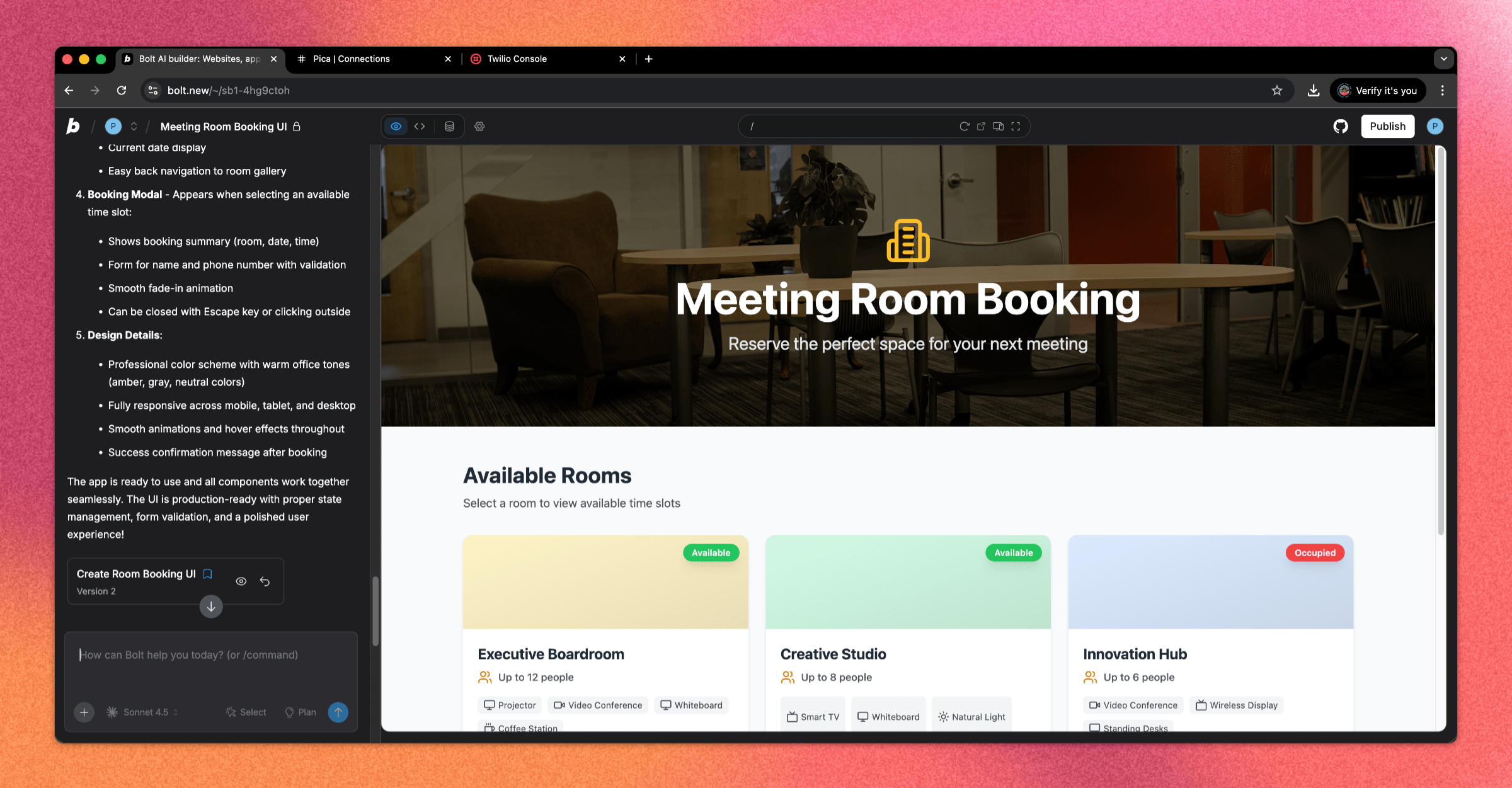
"Build me the UI for a meeting room booking software. It should have an interface that shows the different meeting rooms that are available. When clicking into it, you should be able to see a list of available time slots for that day. Once a user clicks on a time slot, a popup will prompt for the user's name and phone number. Build me only the UI."
💡 Pro tip: In Bolt, press the Enhance Prompt button and use Plan Mode to get a more detailed implementation plan before building.
Bolt will generate a complete booking interface with room selection, time slots, and a booking form modal.

Step 2: Set Up Your Twilio Account
Before connecting to Pica, you need to set up your Twilio account with a messaging service.
Create a Twilio Account:
- Go to twilio.com and create an account
- Verify your phone number during signup
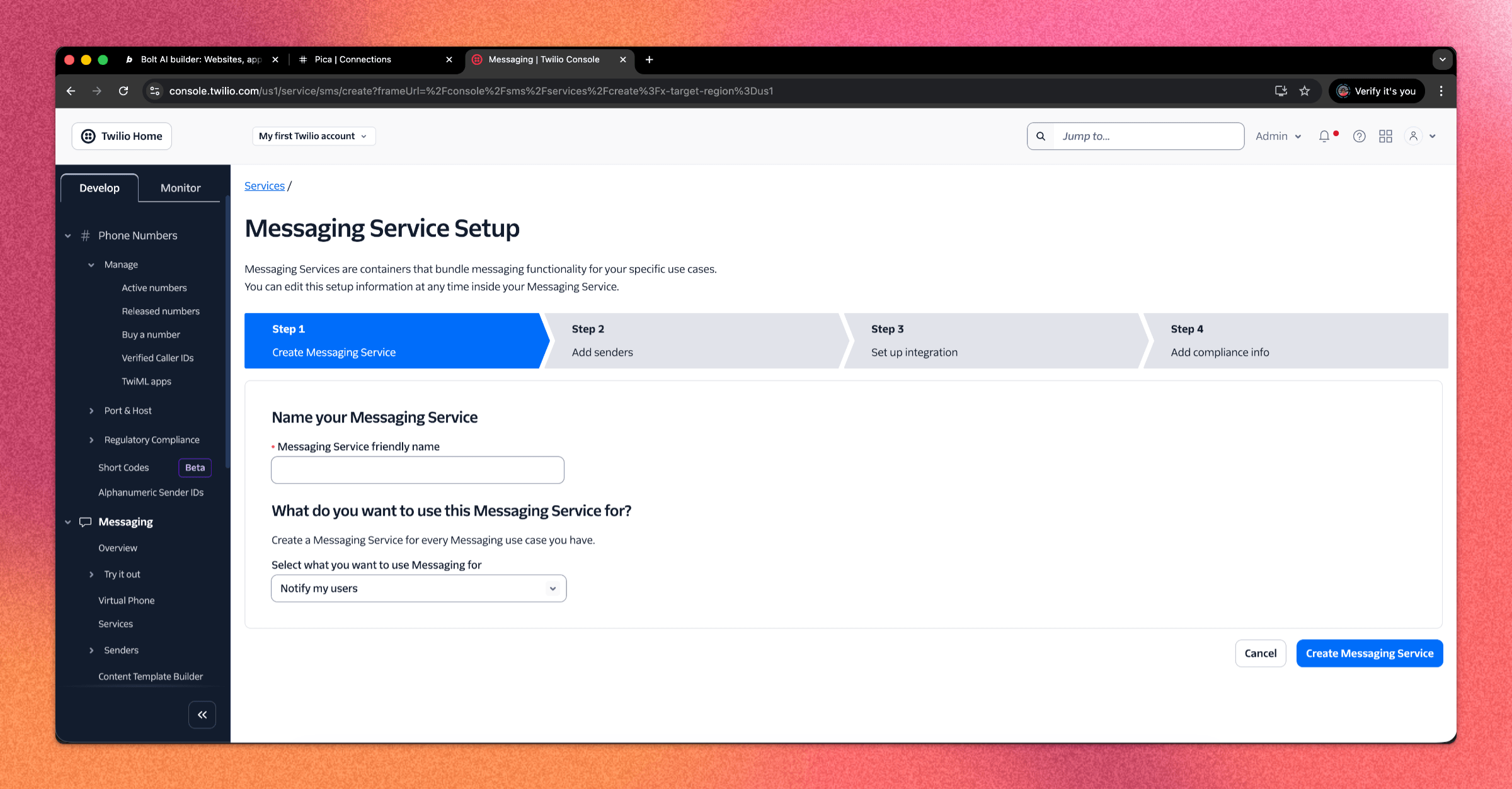
Create a Messaging Service:
- In your Twilio Console, navigate to Messaging > Services
- Click Create Messaging Service
- Give it a name (e.g., "Meeting Room Bookings")
- Add a phone number to the service (you can buy one or use the trial number)
Add a Sender Phone Number:
Your messaging service needs a sender phone number in the Sender Pool. Add your Twilio phone number to the service:

Copy Your Credentials:
You'll need these values later:
- Account SID - Found on your Twilio Console dashboard
- Messaging Service SID - Found in your Messaging Service settings (starts with
MG)
Step 3: Create a Twilio Connection in Pica
Now connect your Twilio account to Pica so your booking app can send SMS messages.

How to Connect Twilio:
- Go to the Pica dashboard at: app.picaos.com/connections
- Click on
+ Add Connection - Select
Twiliofrom the list of integrations - Enter your Twilio Account SID and Auth Token
- Grant the necessary permissions for messaging
- Save your connection key - you'll need this later!
Step 4: Generate Your Code with BuildKit
Now we'll use Pica BuildKit to generate the perfect prompt for sending SMS via Twilio.
Using BuildKit:
- Go to the BuildKit page at: app.picaos.com/buildkit
- Type: "Send a message via Twilio using a messaging service with the SID {{YOUR_MESSAGE_SERVICE_SID}}"
- BuildKit will generate an optimized prompt for you
Or copy the prompt here:
🚀 Next step: Copy the prompt above and paste it into Bolt.new to create your backend logic!
What BuildKit Does:
BuildKit automatically generates a prompt that includes:
- ✅ Proper API authentication setup
- ✅ Twilio Messaging Service integration
- ✅ SMS sending with dynamic content
- ✅ Error handling best practices
- ✅ Environment variable configuration
- ✅ Integration with your Pica Twilio connection
Step 5: Add Your Secrets to Bolt
Once Bolt generates your application, you'll need to add your API keys as environment variables.

Required Environment Variables:
1. PICA_SECRET_KEY
- Get it from: app.picaos.com/settings/api-keys
- This authenticates your application with Pica
2. PICA_TWILIO_CONNECTION_KEY
- Get it from: app.picaos.com/connections
- This is the connection key you saved in Step 3
3. TWILIO_ACCOUNT_SID
- Get it from: Your Twilio Console dashboard
- This is your Twilio Account SID
4. TWILIO_MESSAGING_SERVICE_SID
- Get it from: Your Twilio Messaging Service settings
- This is the SID that starts with
MG
How to Add Secrets in Bolt:
- Click on the Settings icon in Bolt
- Navigate to Secrets
- Add all four keys with their respective values
- Save and restart your application
Now your booking app is connected to Twilio and will send SMS confirmations automatically! 🎉
Step 6: Try It in Action!
Test your meeting room booking app by making a reservation. You should receive an SMS confirmation immediately!

Test the Flow:
- Select a meeting room from the list
- Choose an available time slot
- Enter your name and phone number in the booking form
- Click Book to confirm your reservation
- Check your phone - you should receive an SMS confirmation! 📱
Troubleshooting
SMS not being sent?
- Check your environment variables - Make sure all four keys are set correctly in your Bolt secret settings
- Verify your Twilio connection - Go to app.picaos.com/connections and ensure it's active
- Check phone number format - Make sure you're using E.164 format (e.g., +1234567890)
- Verify Twilio balance - Ensure your Twilio account has sufficient credits
- Check Pica logs - View execution logs in your Pica dashboard
SMS sent but not received?
- Check the "To" number - Verify the recipient number is correct
- Check Twilio logs - View message logs in your Twilio Console for delivery status
- Carrier filtering - Some carriers may filter messages; try a different number
Conclusion
Congratulations! 🎉 You've just built a production-ready meeting room booking system with SMS confirmations in minutes. Every time a user books a room, they'll automatically receive a text message confirmation!
What you can do next:
- Add email confirmations alongside SMS
- Implement calendar integration (Google Calendar, Outlook)
- Add booking cancellation with SMS notifications
- Create admin notifications for new bookings
Ready to add more integrations? Explore other Bolt use cases to supercharge your application with Pica.
Get Help
Questions or need support?
- 📅 Schedule a call with our team
- 📚 Check out the Pica documentation
- 🎥 Watch our video tutorials
Happy building! 🚀